


Switching browsers usually starts with a chore. You download the app, drag it somewhere, then spend an evening rebuilding what you had: the bookmarks, the sites you open every morning, the search engine you like. We wanted S3 Browser to skip that part.
2.4 is the release where S3 learns to set itself up. The first launch is now a short guided setup that brings your things over, connects the AI tools you already use and leaves you on a Home that already feels like yours.
A welcome that takes a breath

S3 opens with its mark assembling from four petals, a short hello in a few languages, and then it asks which language you want. A click, Return or Space skips the intro, and with Reduce Motion on it becomes a simple fade.
Bring your stuff
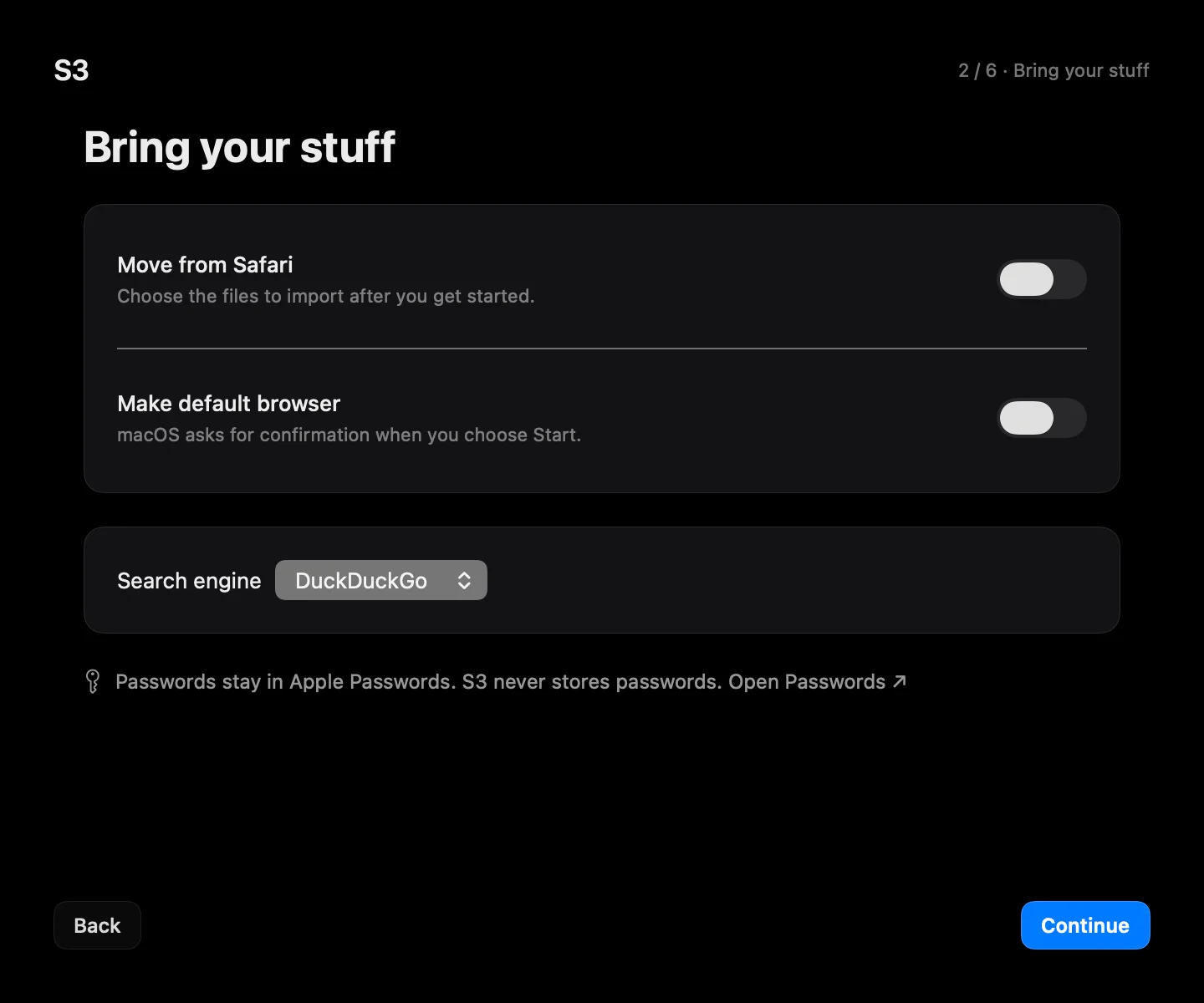
Step two brings your things over. Import from Safari, make S3 your default browser and pick a search engine. Passwords stay in Apple Passwords; S3 never stores them.
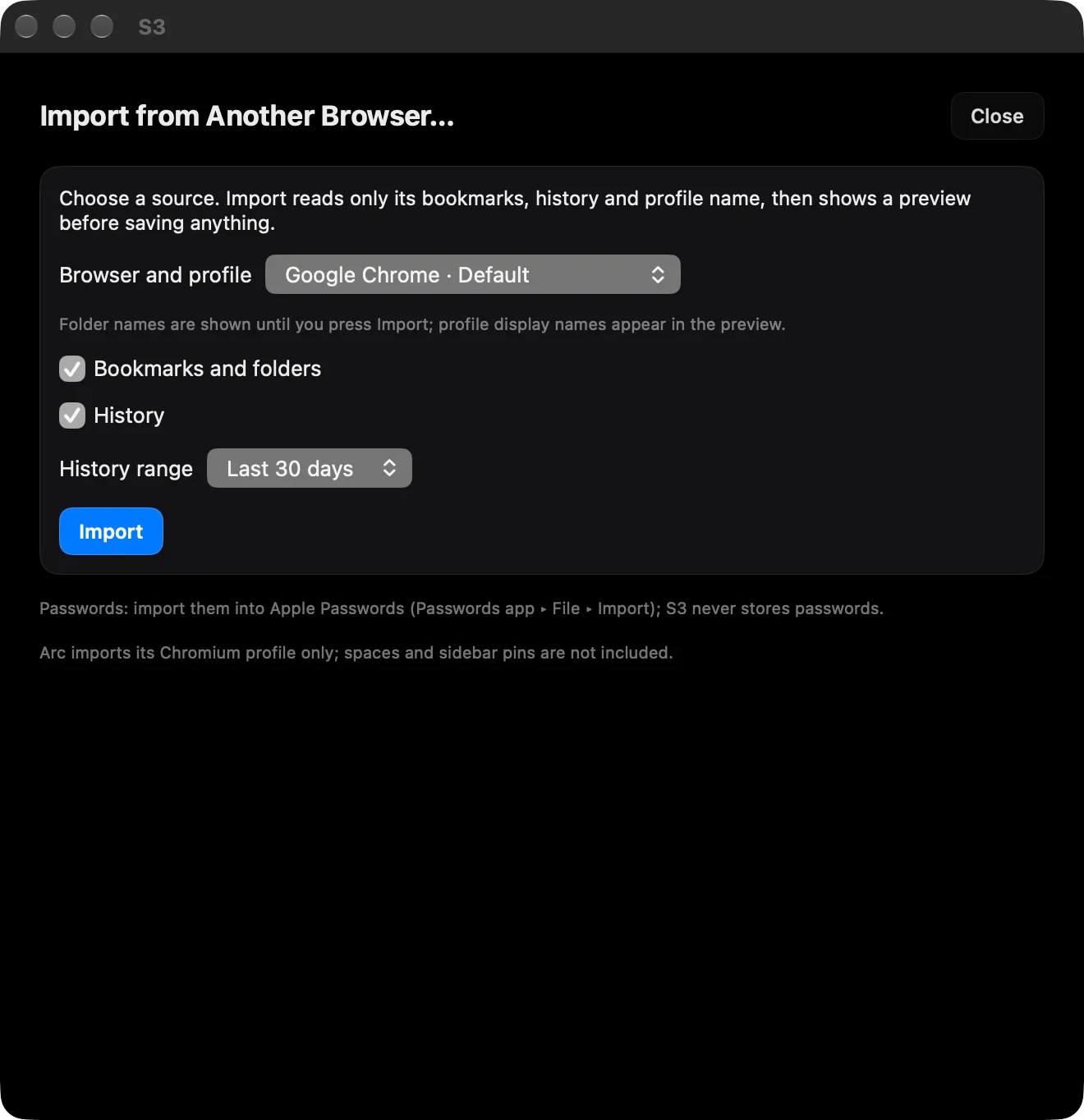
S3 can now import bookmarks and history from Chrome, Brave, Edge, Arc, Vivaldi, Opera and Firefox. It reads only what you choose, shows a preview before it saves anything, and one button undoes the whole import. Passwords are never imported. You find it in setup, and any time later under File ▸ Import from Another Browser….
Make it yours
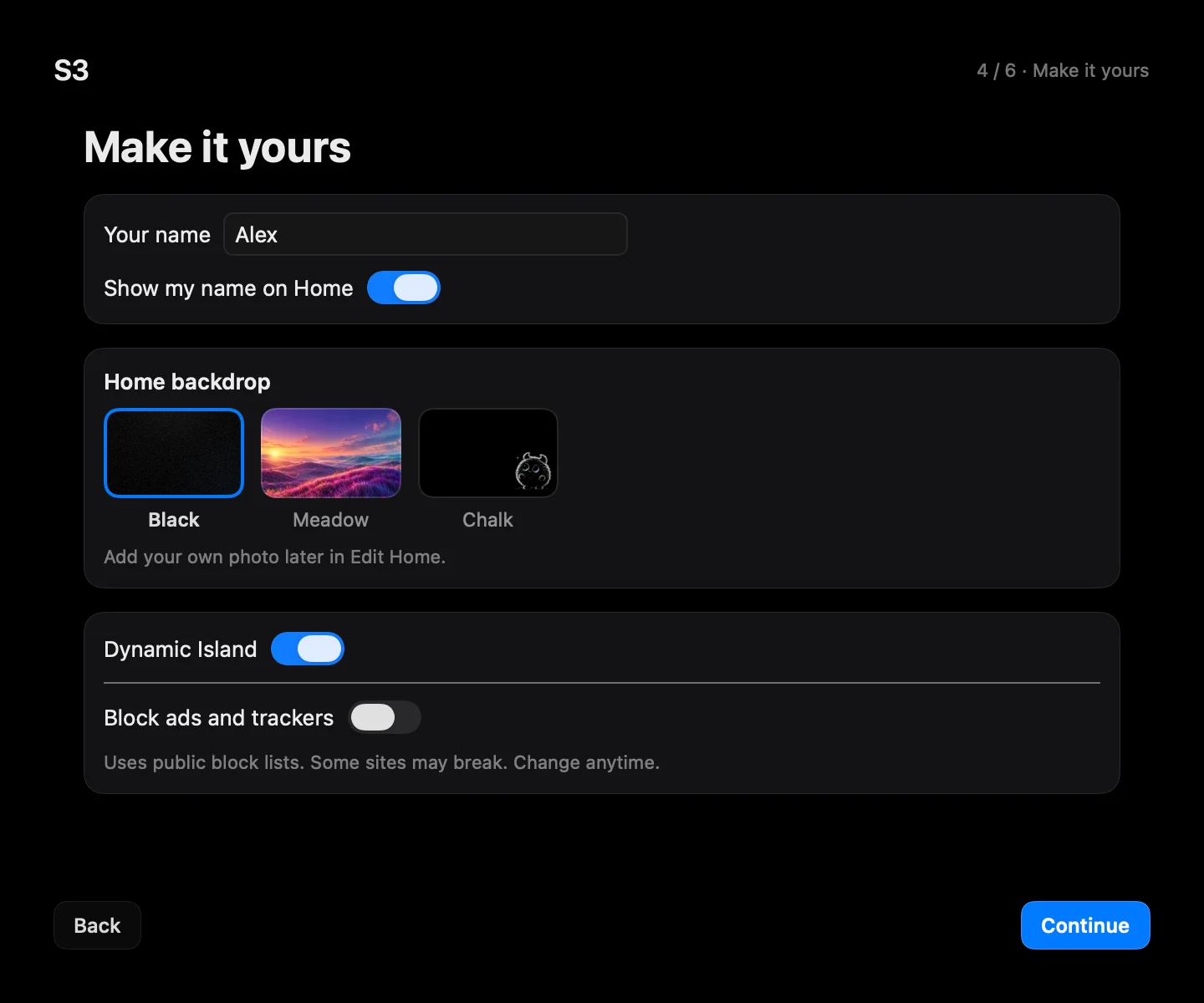
Pick the name Home greets you with, a backdrop, whether the Dynamic Island is on, and whether S3 blocks ads and trackers. Everything can be changed later.
Connect Claude and Codex to S3
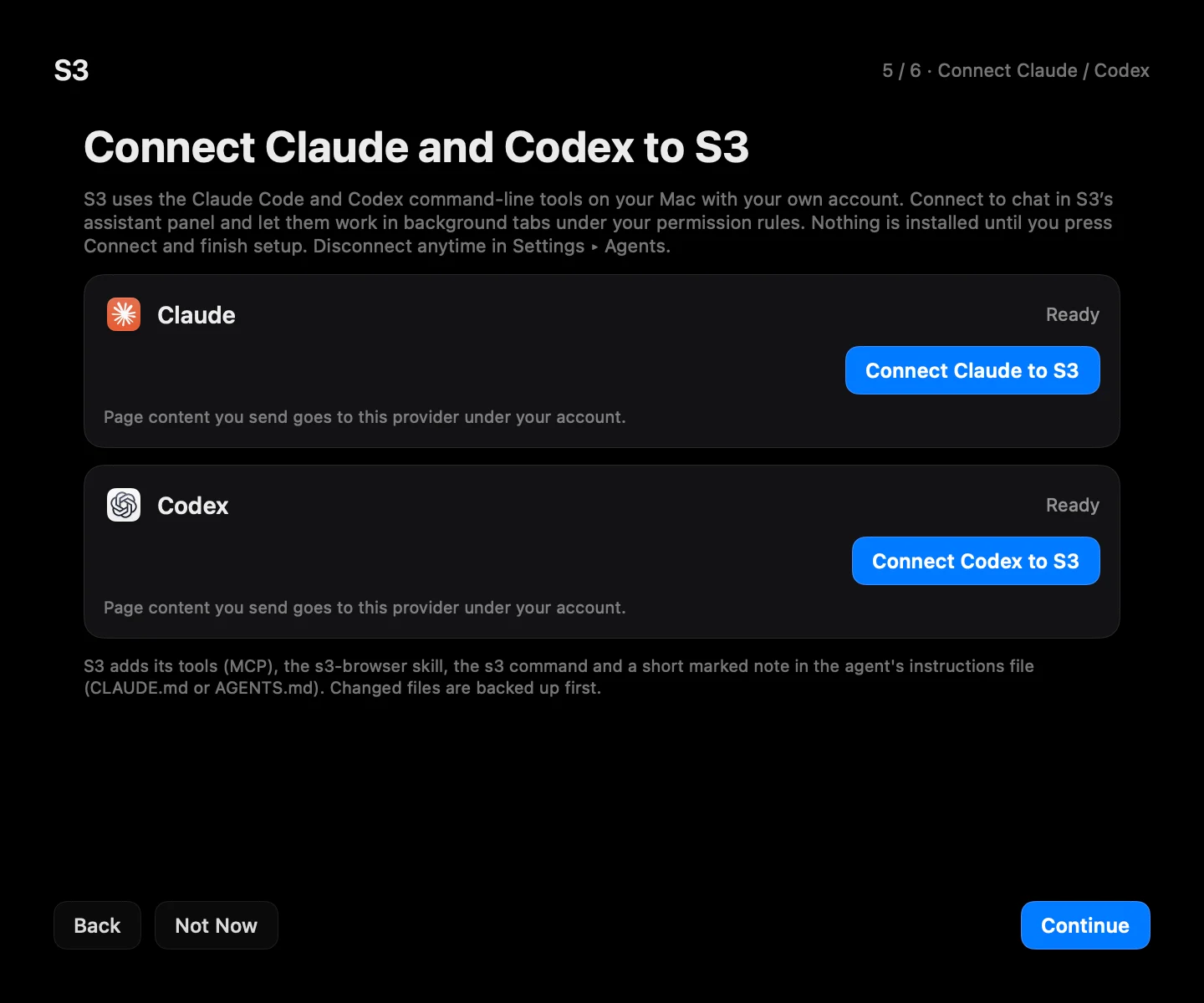
S3 works with Claude Code and Codex through their command-line tools on your Mac, with your own account. Setup now says exactly what each one needs. If a tool is missing, it shows where to install it. If you are not signed in yet, it shows the one Terminal command to run.
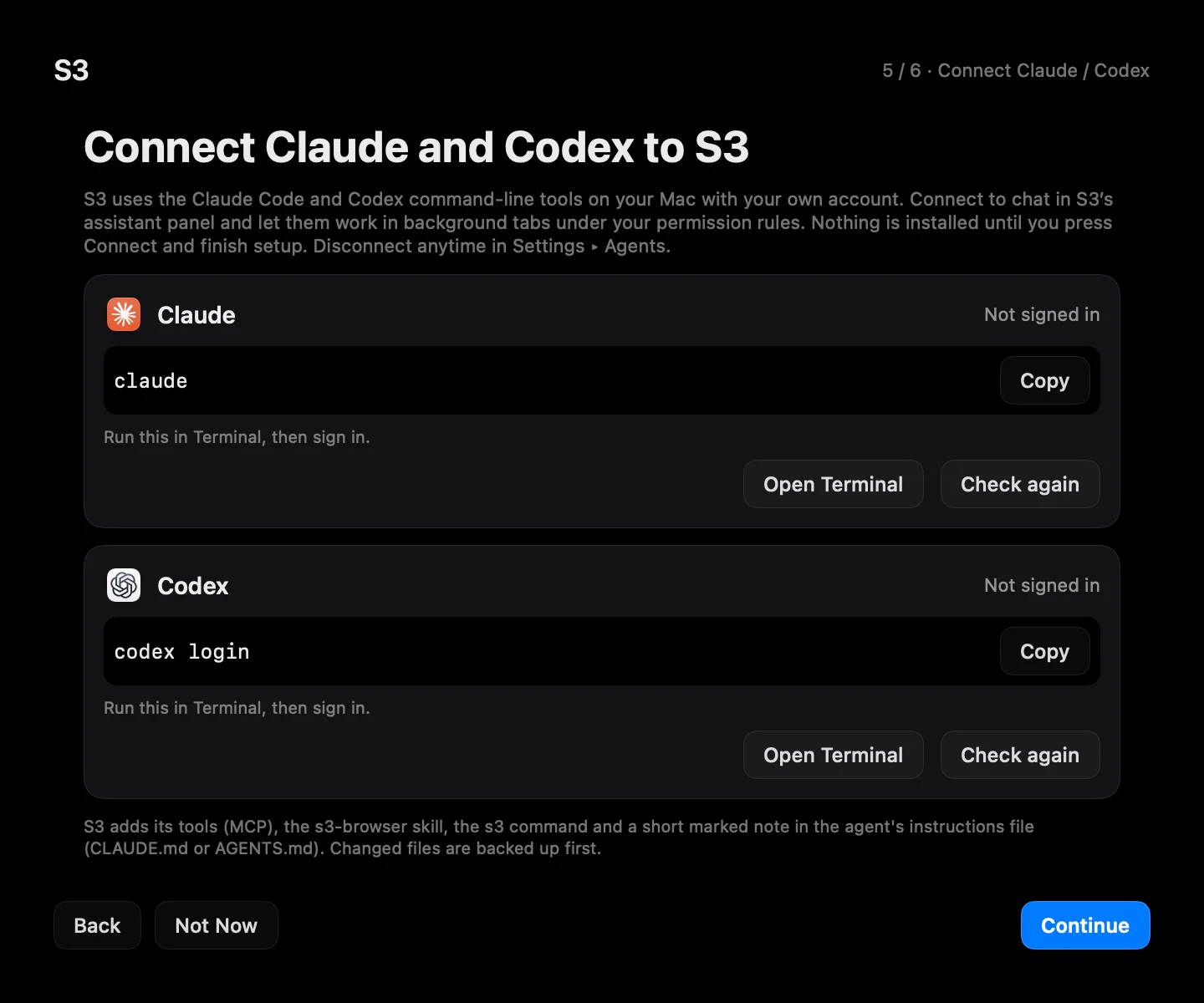
When a tool is ready, one button connects it: Connect Claude to S3. After that you can chat with it in S3’s assistant and let it work in background tabs under your permission rules. Nothing is installed until you finish setup, and you can disconnect any time in Settings ▸ Agents.
It finds its own place
Open S3 from Downloads, a disk image or the Desktop and it now moves itself into Applications and reopens from there. The old copy goes to the Trash; it is never deleted outright. And if you open a second copy of S3, the one already running comes to the front, so two copies never use your profile at the same time.
A short tour
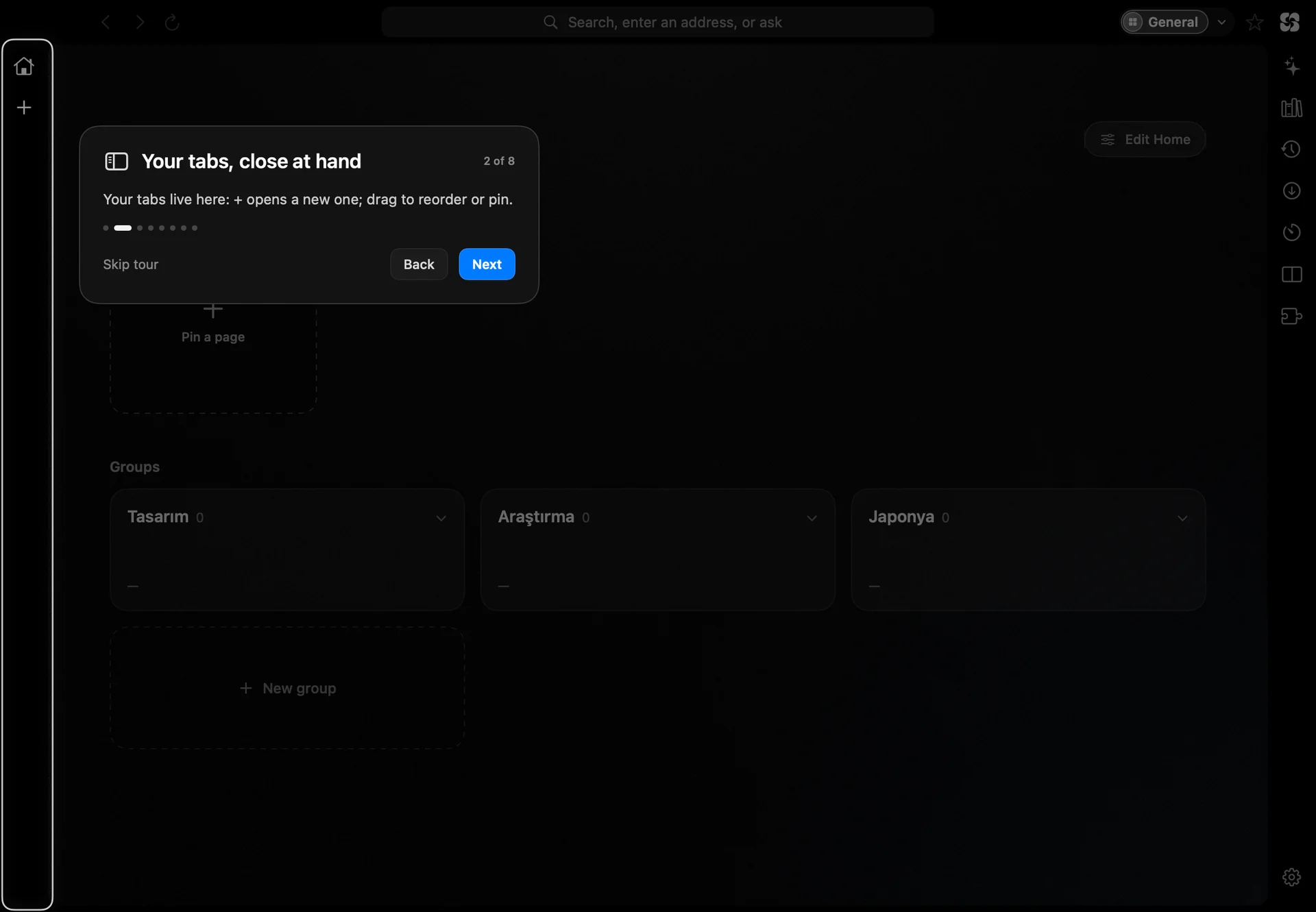
At the end of setup, S3 offers a short tour of the address field, tabs, tools, spaces, Home, the Dynamic Island and the timer. Take it now, or skip it.
Quieter underneath
Pages you open often can be prepared in the background with your own session and appear instantly. Banking, payment, sign-in and message pages never are, and private windows never learn or prepare.
An independent review of page preparation, agent permissions and site-data deletion led to a round of security and privacy fixes.
The download is much smaller than it used to be.
What it looks like today
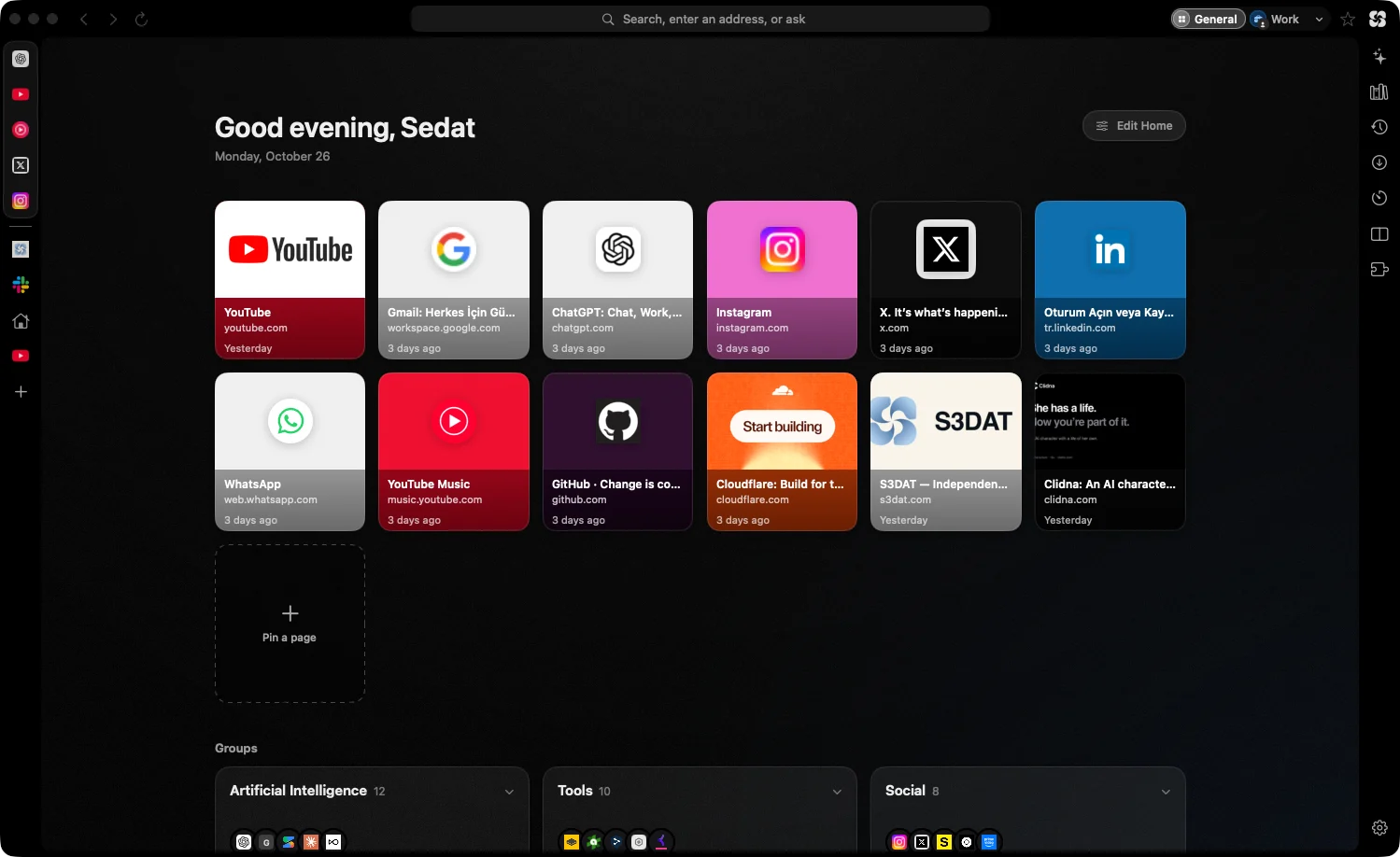
This is S3 Browser 2.4 as we use it every day: pinned tabs on the left, the pages we open most on Home, and groups for everything else.
Download
S3 Browser is free for Macs with Apple silicon running macOS 15.4 or later. The current version is 2.4.1. If you already use S3, the update arrives in the app and installs only after you confirm.
Download it and see everything it does on the S3 Browser page.
The browser that keeps your place. Now it brings your things, too.